
The journey of my 1st look at HashiCorp Vault OSS.
Part 1 - Install & Setup
What is Vault?
According to their own site:
Vault comes with various pluggable components called secrets engines and authentication methods allowing you to integrate with external systems. The purpose of those components is to manage and protect your secrets in dynamic infrastructure (e.g. database credentials, passwords, API keys).
Source
So the Purpose of Vault is to have a centralized System which stores your Creds, API Keys and so on, instead of hard-coding them into your applications. At the same time the identity management of Vault controls who gets access, how they get access and what they can do to this data.
the Plan
The Vault Secret Stores are called Engines and it ships with a for me pretty interesting one. Which will be the focus for this Post.
- PKI Certificates
Yes, there is LetsEncrypt and the ACME Protocol, but not all of my Systems are externally exposed or shouldn’t be. Managing internal certs for NIX Systems is a pain, especially if you only want short lived Certificates.
Install vault
At first we have to install Vault.
I also wanted to try out the latest RHEL 9.0 so i installed a clean VM and followed their Quick Start
|
|
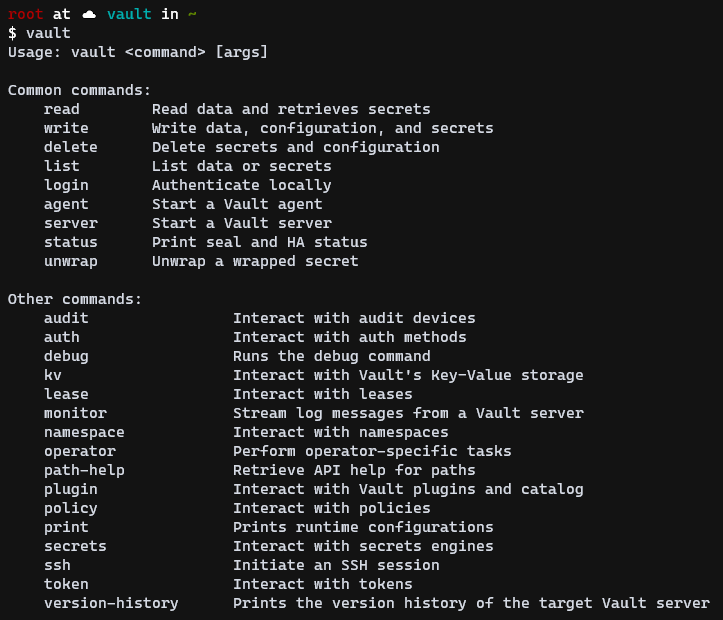
- Vault is installed!
configure Vault
To configure Vault a config file needs to be created in HCL which is a json like syntax.
|
|
|
|
The TLS Settings are just used for the first start and would be changed later.
Create the folder for the data path and make sure the config file and data path is owned by vault.
|
|
Start Vault
|
|
if no error appears execute vault operator init this command will show you unseal keys and the root token.
NOTE: save the Output. You will not be able to retrieve this information later.
executing vault status will show a output like this:
|
|
as you can see in the output above, the Status Sealed true. This means Vault is running but you are not able to interact with it since it is locked and the system can not decrypt the data.
Unseal Vault
To interact with the System we have to unseal Vault. You can either unseal it with the CLI and/or if you enabled the UI in your config file you can access Vault with a Browser on Port 8200. Keep in mind the UI is currently a plain-text http connection.
CLI:
|
|
After entering your first unseal key you will receive this output
|
|
Accessing the UI at this time will also show 1/3 Keys Provided
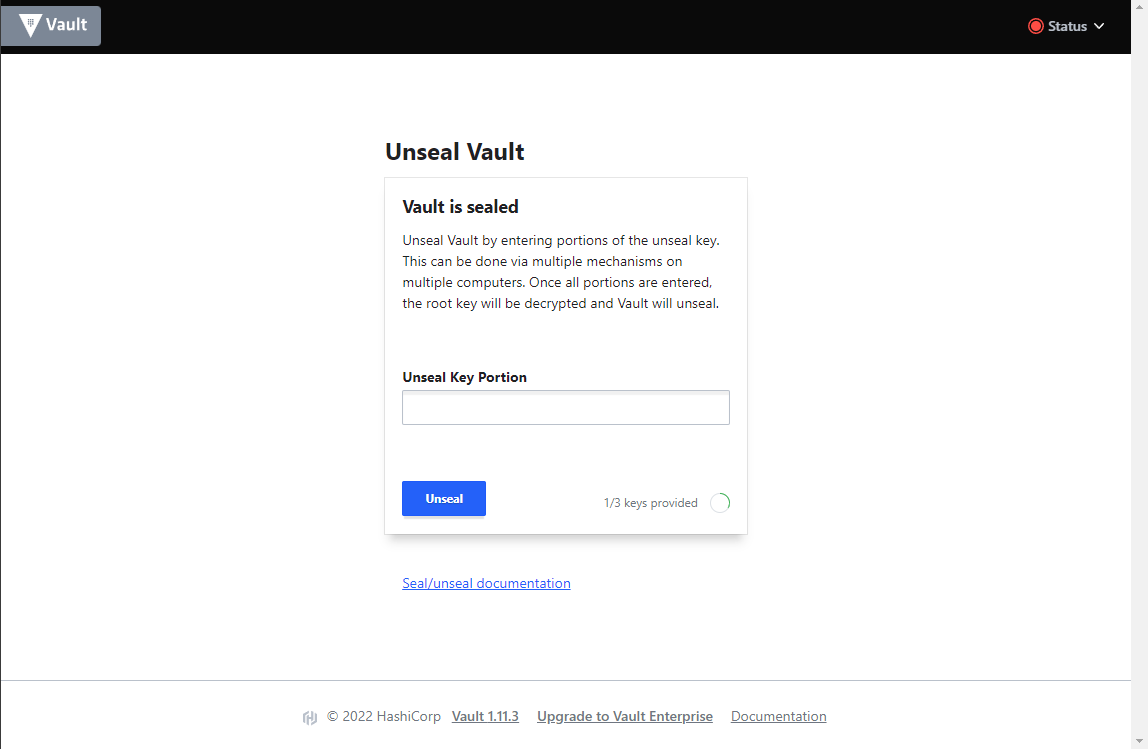
if you proceed and enter all 3 keys either through CLI or the UI, Vault is unsealed and you can login for the first time.